
Feature Flags
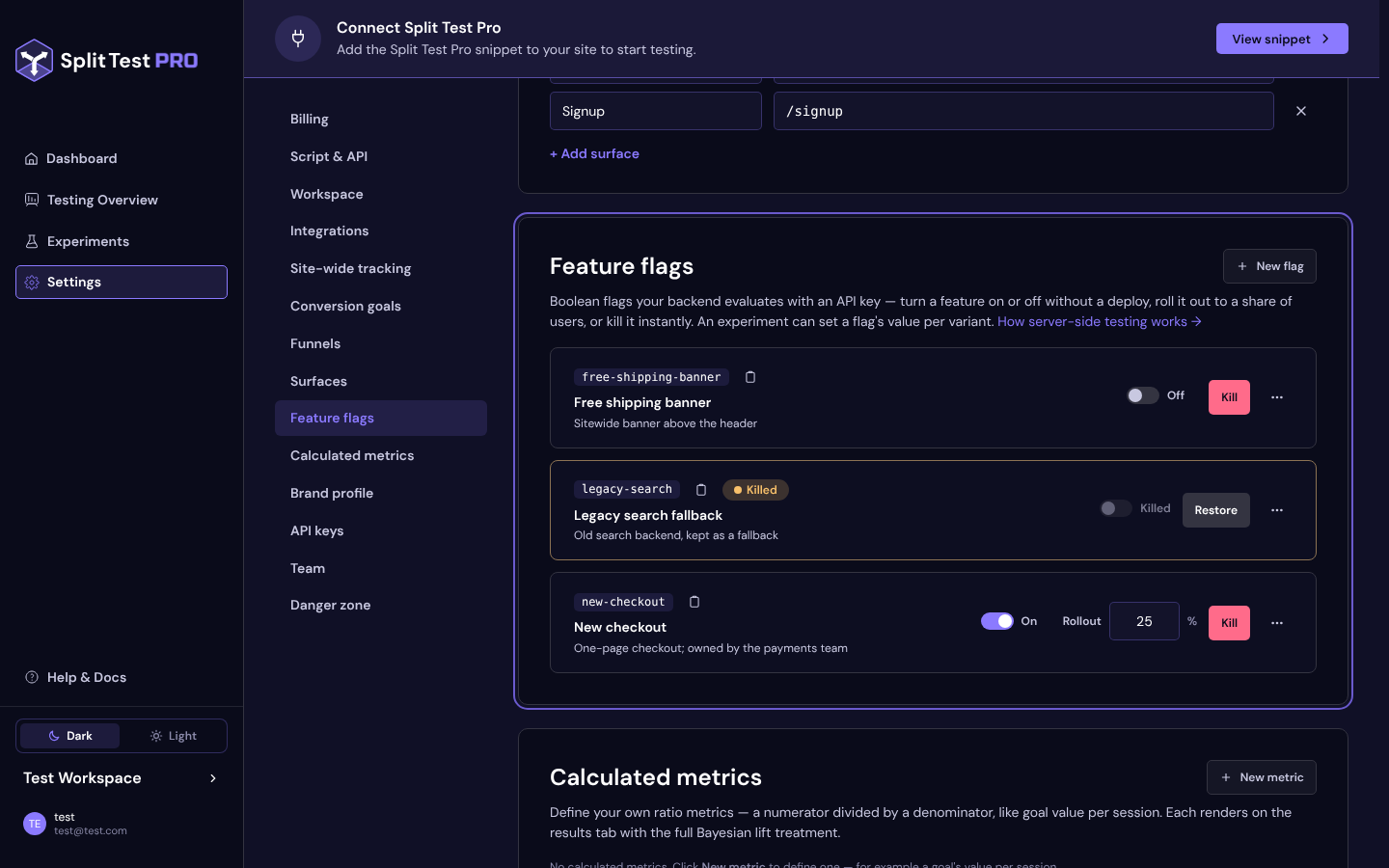
Create flags in Settings, turn them on or off, roll them out to a percentage of users, kill them instantly, and let experiments set their values.
A feature flag is a named boolean your backend checks before showing a feature. You manage flags in Settings → Feature flags; your backend reads them through the evaluation API or the Node SDK. Flags are available on every paid plan, and only workspace owners can manage them — other members see “Only workspace owners can manage feature flags.”
Creating a Flag
- Open Settings → Feature flags and press New flag.
- In the New feature flag dialog, type a Name (up to 80 characters), for example “New checkout”.
- The Key fills in from the name (
new-checkout); edit it if you like. The hint reads “Lowercase letters, digits, hyphens and underscores (1–64), starting with a letter or digit. You can’t change it later.” The key is what your code uses, so it can’t be edited after the flag is created. - Optionally add a Description — “What this flag controls and who owns it” — up to 500 characters.
- Press Create flag. The toast reads “Flag “new-checkout” created. It’s off until you turn it on.”
A workspace can hold up to 100 flags, and keys are unique within the workspace.
Turning a Flag On, Off and Rolling It Out
Each row has a switch labelled On or Off and a Rollout percentage (a whole number from 0 to 100; new flags start at 100).
- Off — every user gets
false. - On — users inside the rollout percentage get
true; everyone else getsfalse. At 100, everyone getstrue.
Changing the rollout from 10 to 50 keeps the first 10% of users and adds 40% more: each user’s place is a fixed hash of their id and the flag key, so raising the percentage never takes the feature away from someone who already had it. Different flags hash differently, so the 10% of one flag isn’t the same users as the 10% of another.
Changes reach your servers immediately through the API, and within one poll interval (30 seconds by default) through the Node SDK’s cache.
Kill and Restore
Kill is the emergency stop. It opens Kill this flag?: “Killing <key> serves false to everyone immediately — including users inside the rollout and any running experiment. The rollout percentage is kept; restoring returns the flag to off.” Confirm with Kill flag. The row shows a Killed badge, and its switch and rollout are disabled.
Restore brings a killed flag back to off (“Flag “<key>” restored. It’s off until you turn it on.”), with its rollout percentage unchanged. Turn it on again when you’re ready.
Deleting a Flag
Open the row’s ⋯ menu and choose Delete flag. The dialog warns: “Deleting <key> removes it for good. Backends that still evaluate this key get false with the reason unknown.” A flag that an experiment’s variant still sets can’t be deleted — remove it from the experiment first.
Using Flags in Experiments
In an experiment’s Variants step, each variant has a Feature flags block: Add flag, choose the flag, set it on or off, Save. If the workspace has no flags yet the picker says “Create flags in Settings → Feature flags first”. The control lists the flags the variants set, read-only at off. While the experiment runs, its variants’ values win over the flag’s own on / off state and rollout — only Kill overrides them. See Server-Side Testing for the full resolution order.
A Flag’s Lifecycle
- Build behind the flag. Ship the new code path with the flag off; production is unchanged.
- Test it. Run an experiment whose variant sets the flag on, against a control that leaves it off.
- Roll out the winner. Rolling out a winning variant writes its values into the flags — on at 100%, or off.
- Clean up. The flag outlives the experiment and keeps serving the winner until you remove the check from your code. Then delete the flag.
Plans
Without a paid plan the card shows “Server-side testing is included in every paid plan. Choose a plan in Settings to use feature flags and API keys.” with a Choose a plan link. New flag and the row controls are disabled, but you can still see and delete existing flags, and evaluations answer false with the reason unentitled.
Next Steps
- Create the key your backend will use: Server API Keys
- Evaluate the flag from Node: Node SDK & Hybrid Tests
- Evaluate it from any language: Evaluation API
